Overview
Sending data to Prodoc from an ERP system (an interface) is a standard feature utilised by most Prodoc systems, through an array of means such as direct SQL query, Prodoc API, flat files and others, Prodoc can pull data or receive a push of data from an ERP system and stage a shipment ready to be built, reducing the work required for manual entry as well as cut down on user error and risk of entry mistakes.
A lesser known and used function of Prodoc is the ability to automatically build shipments that stage from an interface data push. So you can push to the Prodoc API, for example, and have it automatically create (or update if it exists) a shipment ready to review and/or process forms. From here there is further customisation and automation possible although it starts to go down a deep and highly complex rabbit hole.
The most basic configuration, and reasonably straightforward, is to have a shipment automatically create if it doesn't exist and assign to a single predefined signee/user (a signee/user MUST be selected for an automated shipment build), however realistically this basic configuration doesn't really add any value.
A real configuration is a reasonably large project on its own and this article describes the range of configuration options available for this feature, what you need to know when things change, and information that you need to supply in order to set it up.
This article assumes the use of the Prodoc API.
This cannot be configured without at least one live documentation user (for catch all), and is recommended to wait until all current users have at least opened Prodoc before applying the change.
TABLE OF CONTENTS
- Overview
- Chargeable
- Shipment Build Options
- Notification Options
- User Assignment Options
- Transport Method - common.transport_method
- Subject to Letter of Credit - common.lc_no
- Signee - common.signee_id
- Customer - common.customer_code
- Inco Terms - common.incoterms_code
- Final Destination - common.final_destination_code
- Destination Country - common.destination_country_code
- Discharge Port - common.discharge_port_code
- Example Data Sets
- Configuration Updates
- Further Custom Work
Chargeable
Please be aware configuring and maintaining this feature carries charges, please speak to your Customer Success Manager or Support for rates.
Shipment Build Options
When a shipment is built, these are the configuration options, mandatory options are designated by an asterisk (*). Only one selection is possible per item, multiple interfaces will be required for multiple options.
Exporter*
You can either name an exporter to always be selected, which will be set by Support, or you must supply as "exporterid" in the data payload.
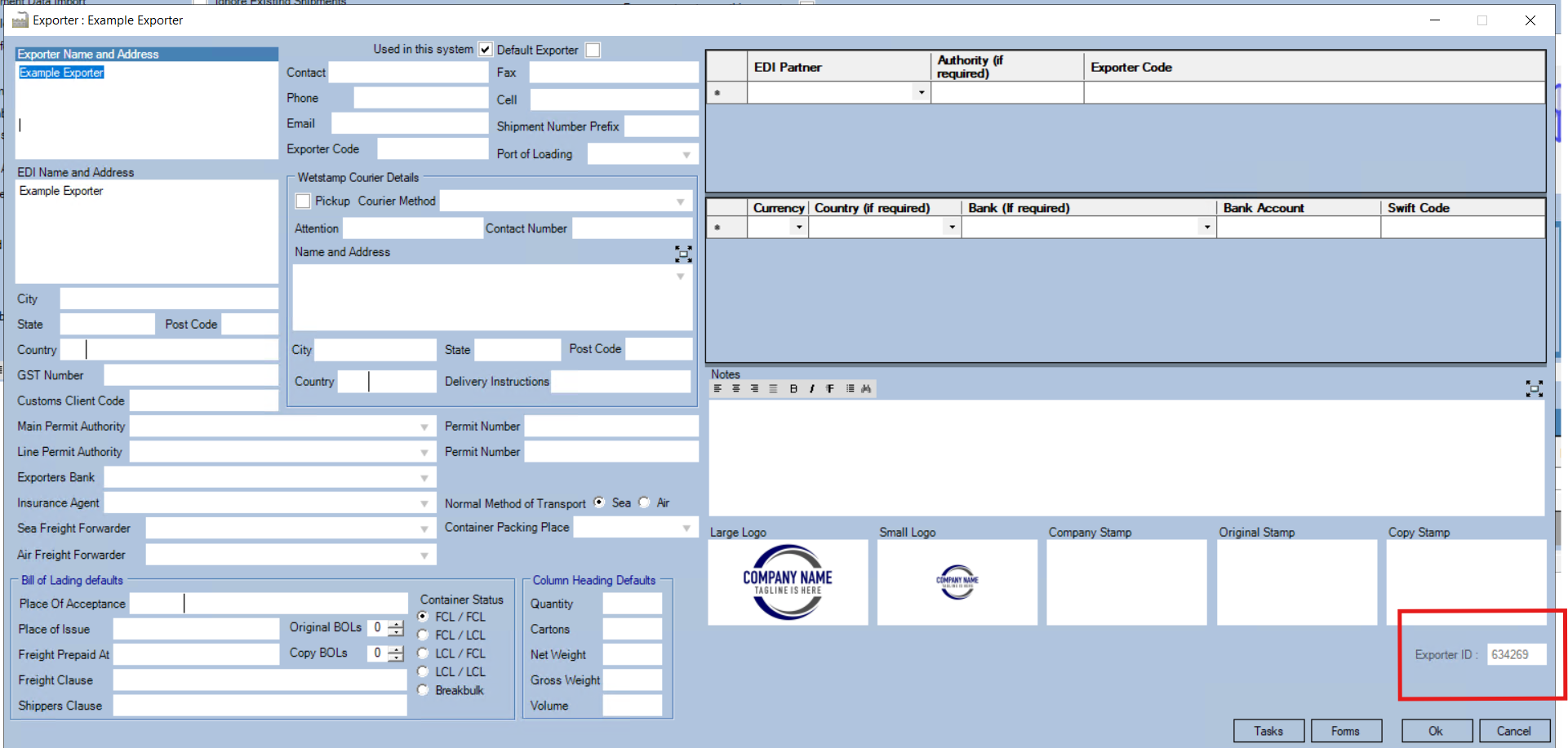
The exporter options or the exporterid can be found in Prodoc Home > Edit > Exporters. Open the Exporter for the ID.
Create Status
By default the create status will be "Shipment: New", but you can also set this to "Shipment: Docs Processing" if preferred.
Applied Profiles*
Most systems have one containerised profile, and one products only profile (breakbulk/air freight etc). If your system utilises more than one profile then one must be selected as default. If you have only one, this will be set automatically.
To separate out profiles for different purposes, you will either need more API interfaces (Import IDs) or custom work to determine profile based on supplied data.
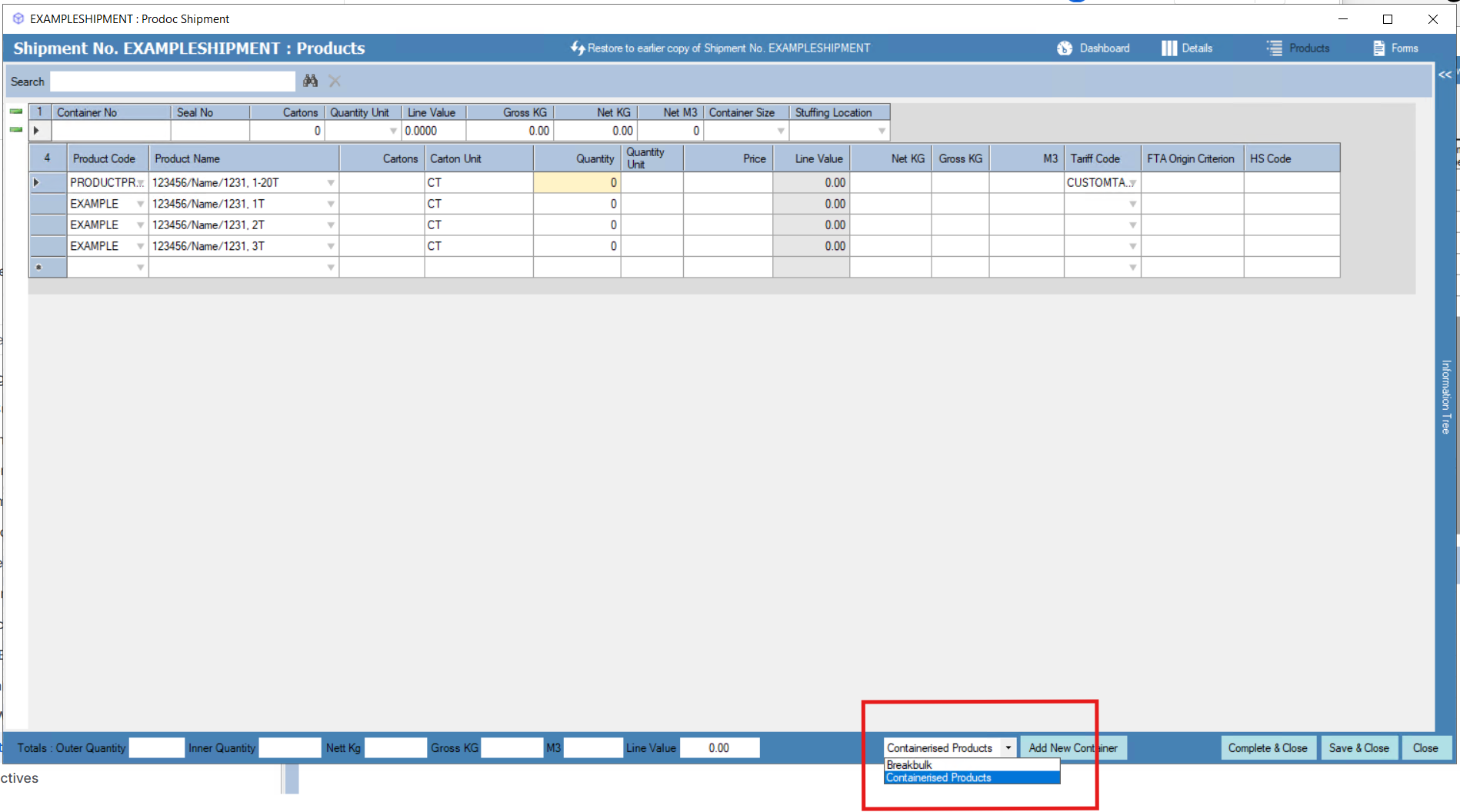
The profiles can be found at the bottom of the Products screen on a shipment.
Existing Shipment Rule
If a shipment already exists of the same shipment number, what should it do? The options are the same as when a shipment already exists when building from any interface.
Nothing will have the shipment go to the Staging Tables to be manually built by the user and is the safest option to avoid data loss.
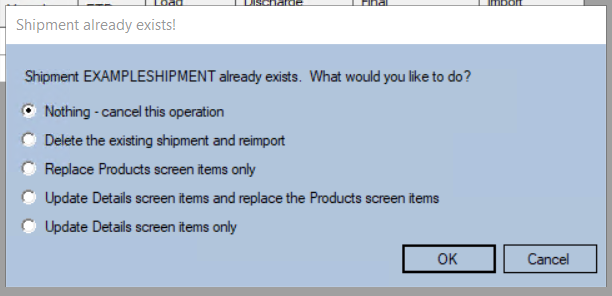
What should a new shipment with the same shipment number do?
Notification Options
When a shipment is built, Prodoc can send out a notification to a single user* or email address per possible user assignment configuration.
Please advise the user or the email address (from the vendor central address*) that the notification should be sent to when advising a user assignment rule.
*Notifications Panel
Notifications are not default configuration but can be activated on request.
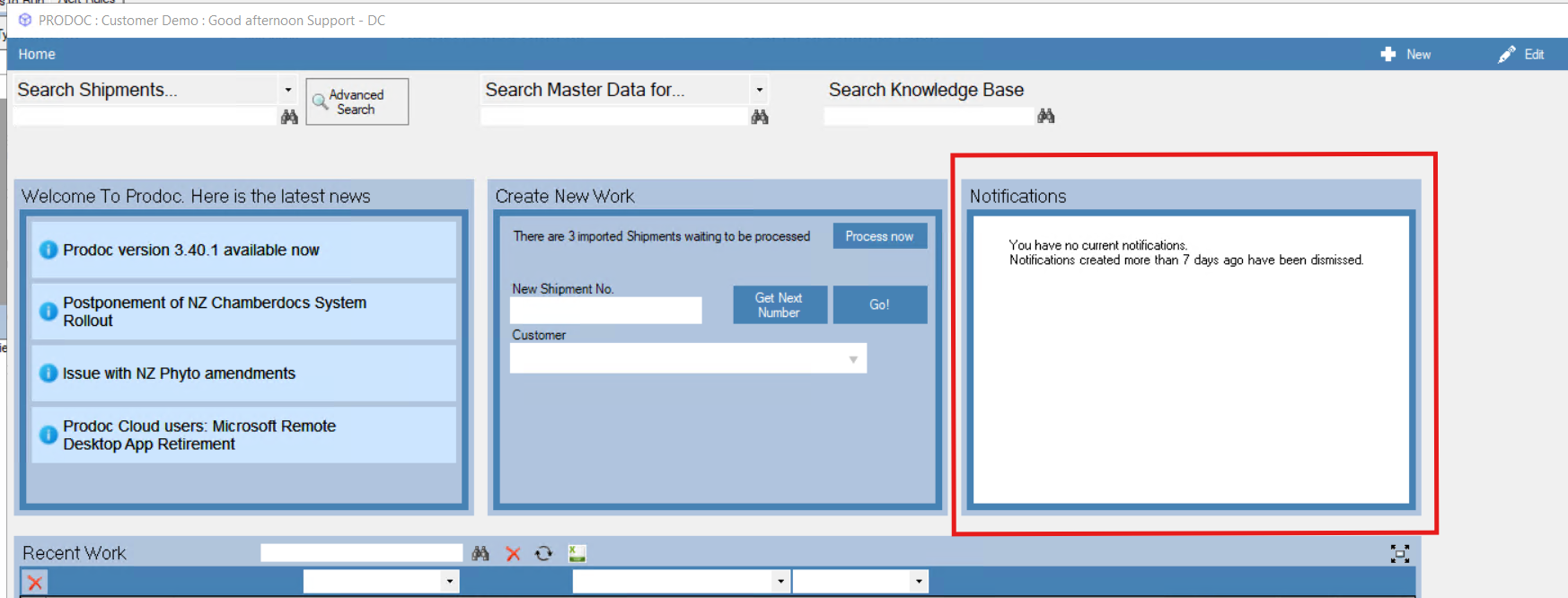
Notifications
*Vendor Central Email Address
This is the central email address used by the Prodoc Service, it is not standard configuration, but set up as required. This may require configuration on your Prodoc system (and possibly a new mailbox set up by your IT).
User Assignment Options
To automatically build a shipment it MUST be assigned to a user, and have the minimum data set. After that, further options can split up user assignment according to rules.
User assignments can be described using a table, and rules activate in order of first criteria match (so if the second item validates on all rules, that will be the rule applied and the rest skipped).
All automated shipment builds should have a catch all configuration, which is equivalent to the basic configuration, then users are configured individually and set above the catch all configuration.
The end outcome is "whom should the shipment be assigned to when built, and who should be notified, if anyone"
Assignment can be split up according to the following rules using the API properties and dot notation for comparison and pathing to the option in Prodoc.
All items can match multiple possibilities (eg. you can assign two customers to one signee, and a third customer to the other signee).
By default, all options are selected in full (catch all).
Transport Method - common.transport_method

Shipment > Details > Overseas Transport > [select]
Subject to Letter of Credit - common.lc_no
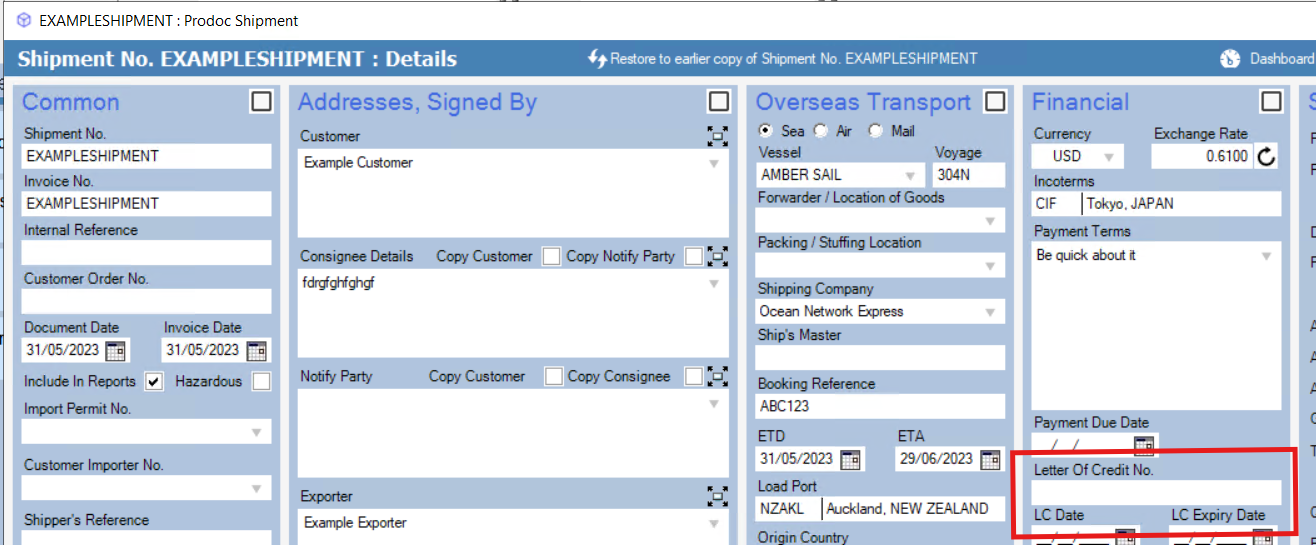
Shipment > Details > Financial > Letter of Credit No.
Signee - common.signee_id
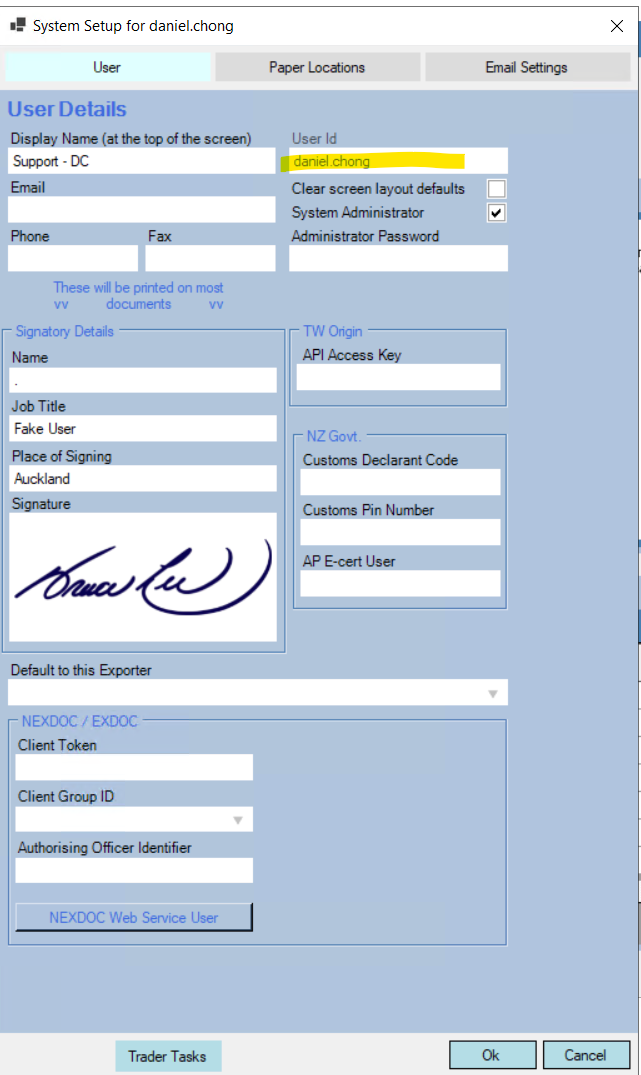
Prodoc Home > Edit > System Configuration > User Details > User Id
Customer - common.customer_code
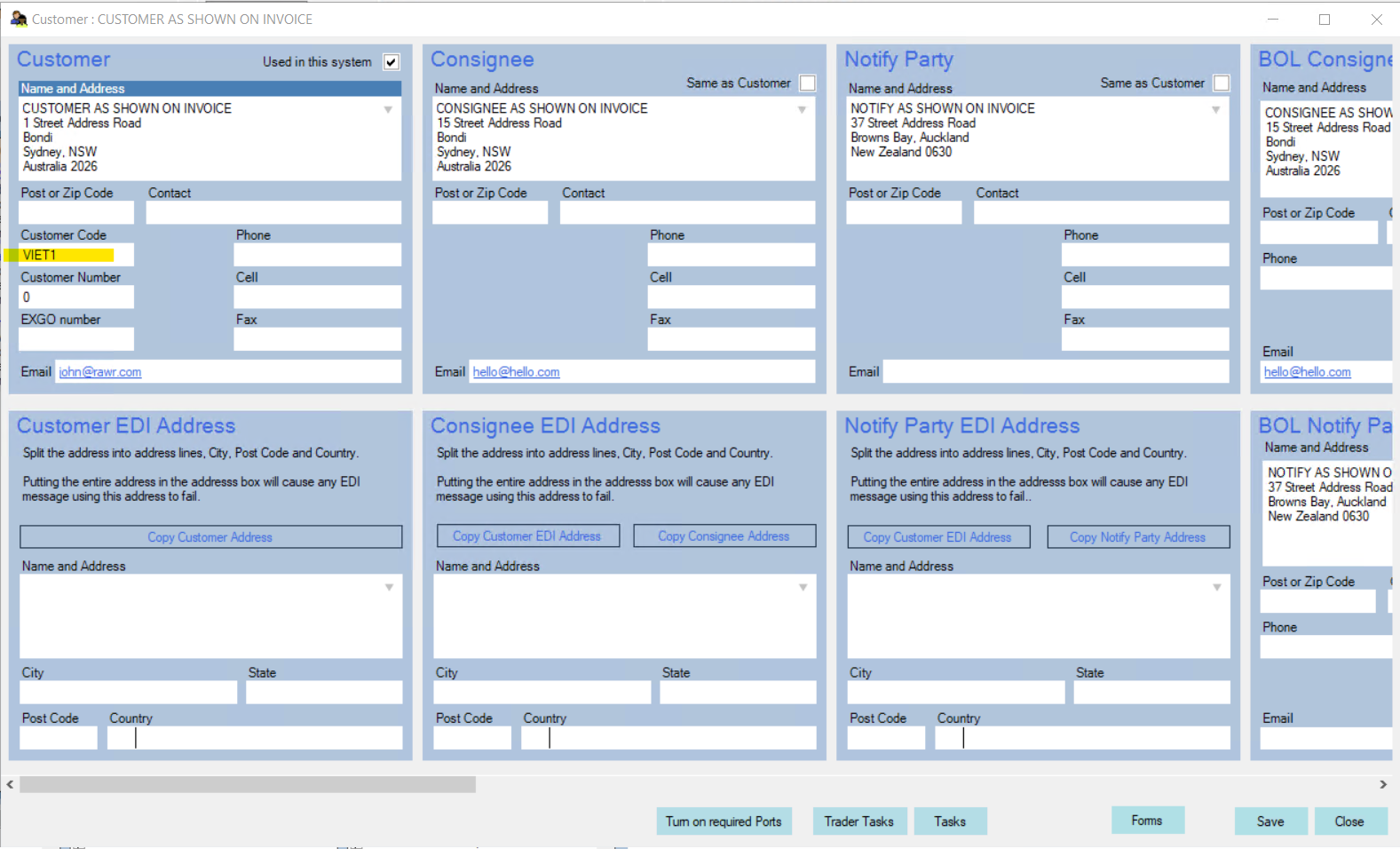
Prodoc Home > Edit > Customers > [select] > Customer Code
Inco Terms - common.incoterms_code
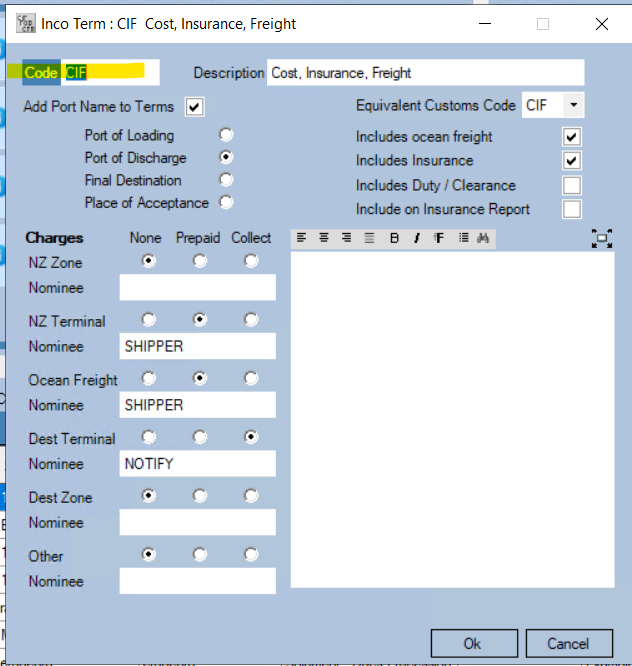
Prodoc Home > Edit > Inco Terms > [select] > Code
Final Destination - common.final_destination_code
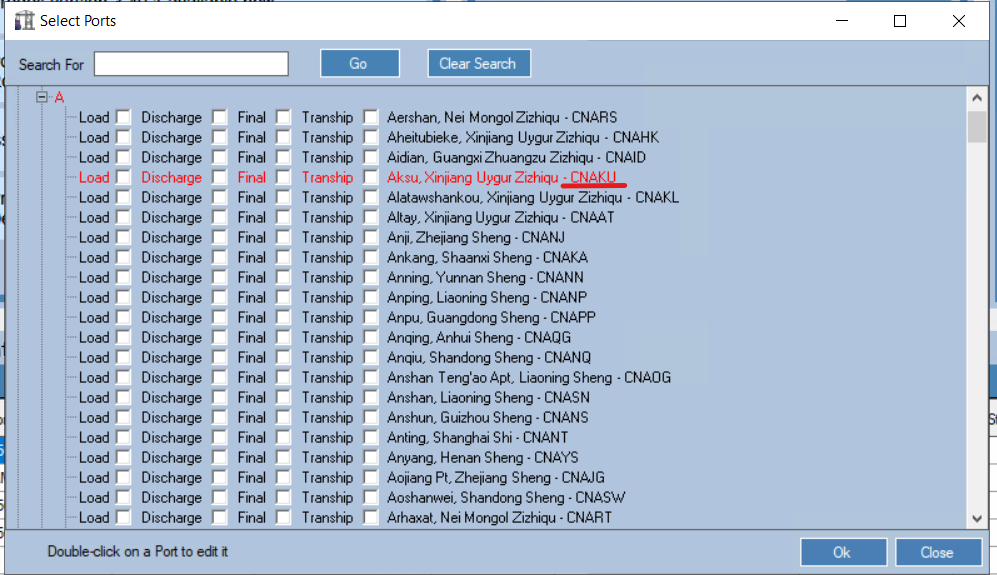
5 Digit UNECE Port Code or Prodoc Home > Edit > Ports > [search/select] > [Code]
Destination Country - common.destination_country_code
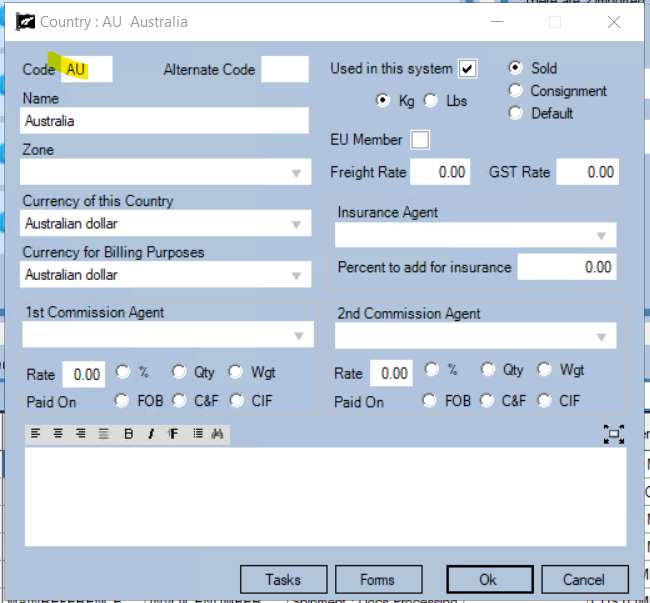
2 Digit ISO Country Code or Prodoc Home > Edit > Countries > [Select] > Code
Discharge Port - common.discharge_port_code
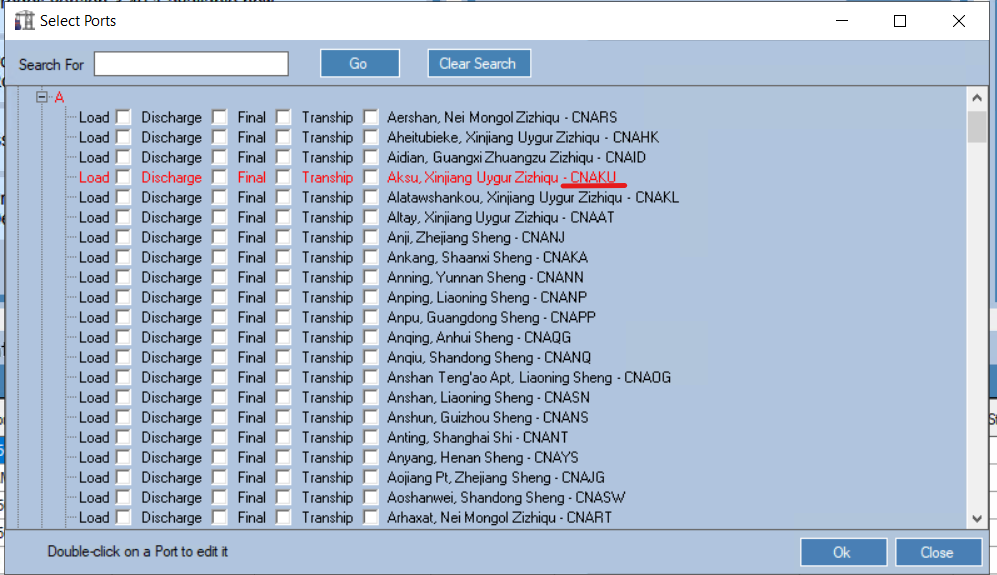
5 Digit UNECE Port Code or Prodoc Home > Edit > Ports > [search/select] > [Code]
Example Data Sets
A. Minimum data set/catch all (all shipments built and assigned to Daniel Chong, no notification)
| Exporter | Container Profile | Product Profile | Existing Shipment Action |
| Example Exporter | Containers | Products Only | Update Details and replace Products |
| Signee | Not. Type | Not. User | Transport | LC | User | Customer | Incoterm | Final D. | D. Ctry | Discharge |
| Daniel Chong |
B. Two User Assignments and a catch all with notifications
| Exporter | Container Profile | Product Profile | Existing Shipment Action |
| Example Exporter | Containers | Products Only | Update Details and replace Products |
| Signee | Not. Type | Not. User | Transport | LC | User | Customer | Incoterm | Final D. | D. Ctry | Discharge |
| John Doe | Notification | john.doe | john.doe | |||||||
| Alex Ander | alex.ander@tradewindow.io | alex.ander | ||||||||
| Daniel Chong | Notification | daniel.chong |
C. Three user assignments, filtered by Customer and a catch all with email notifications
| Exporter | Container Profile | Product Profile | Existing Shipment Action |
| Example Exporter | Containers | Products Only | Update Details and replace Products |
| Signee | Not. Type | Not. User | Transport | LC | User | Customer | Incoterm | Final D. | D. Ctry | Discharge |
| John Doe | john.doe@tradewindow.io | CUST001 | ||||||||
| Alex Ander | alex.ander@tradewindow.io | CUST002 CUST003 CUST004 CUST005 | ||||||||
| Regina Phalanges | regina.phalanges@tradewindow.io | CUST006 CUST007 CUST008 CUST009 | ||||||||
| Daniel Chong | daniel.chong@tradewindow.io |
Configuration Updates
Configuration updates are not automatic and must be manually applied by Prodoc Support as required.
Using Example C above, if a new customer is added to Prodoc, CUST1015, it will be applied to Daniel Chong in the catch all. If you wish to assign it to John Doe, then you will need to alert Prodoc Support that it now exists and should be assigned to John Doe and this will carry time charges for the change.
The same applies for anything new which has not been accounted for, including new signees/users. If you hire a new staff member, their account comes into existence on first login to Prodoc, only at this point can shipments be automatically built against their name.
Process for a new staff member would thus be as follows, Create Login, User Logs in, Notify Prodoc Support that they should have shipments automatically assigned to them, and the criteria that would apply. Prodoc Support will then modify your system to account for that user. All changes are time chargeable at standard support rates.
Further Custom Work
As always with Prodoc, there are many custom hooks throughout the software where Prodoc can manipulate data. If you have a specific need around assignment, feel free to contact us to see what is possible.
As an example of a customisation applied around this function, a Prodoc user wanted load balancing applied for automated shipment assignment. This could be achieved through custom work by producing a user assignment for every user in the load pool, linked only to a user filter for their name, then a query that selects the user with the least number of shipments with "Docs Processing" status and injects their user into common.signee_id, forcing the system to select their assignment.
Was this article helpful?
That’s Great!
Thank you for your feedback
Sorry! We couldn't be helpful
Thank you for your feedback
Feedback sent
We appreciate your effort and will try to fix the article