Summary
Microsoft will retire the legacy Remote Desktop app for Windows on 27 March 2026. This article guides you through installing and using the new Windows App to access your remote desktops and applications, including Prodoc.
This information is for Prodoc Cloud users only.
Step 1: Identify the Legacy App Notification
If your Remote Desktop app is up-to-date, you will see a notification like the one in Screenshot 1.
This indicates that the legacy app will no longer be supported and you need to switch to the Windows App.
Step 2: Install the Windows App
You can install the Windows App using one of the following methods:
- Microsoft Store (recommended):
Download from Microsoft Store - Direct MSIX download:
Download the MSIX package
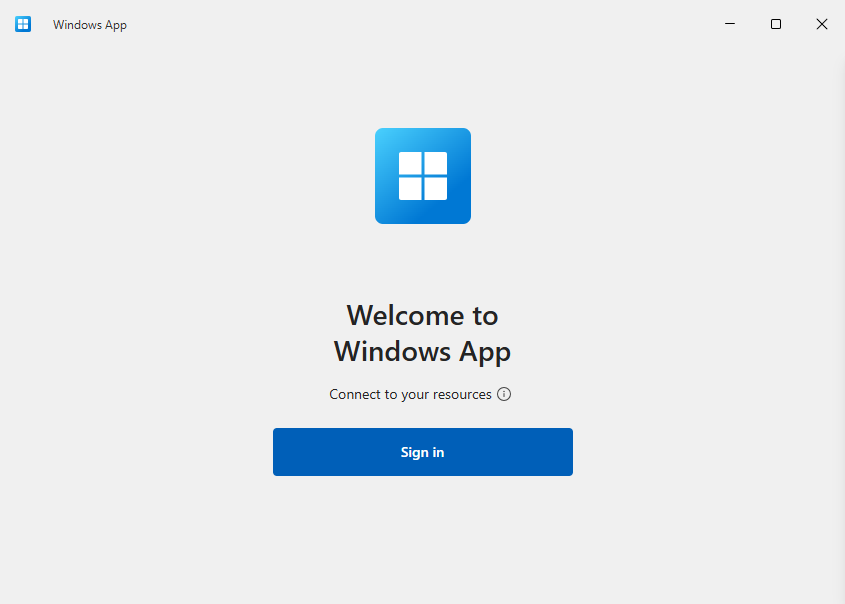
After installation, launch the Windows App. You will see the sign-in screen as shown in Screenshot 2.
Step 3: Sign In
- Enter your @twprodoc.io username and password.
- If you do not know your password or need a reset, contact prodoc@tradewindow.io
Step 4: Switch to the Apps Screen
Your Prodoc Cloud access is in the 'Apps' section. Use the navigation bar on the left to switch to that.
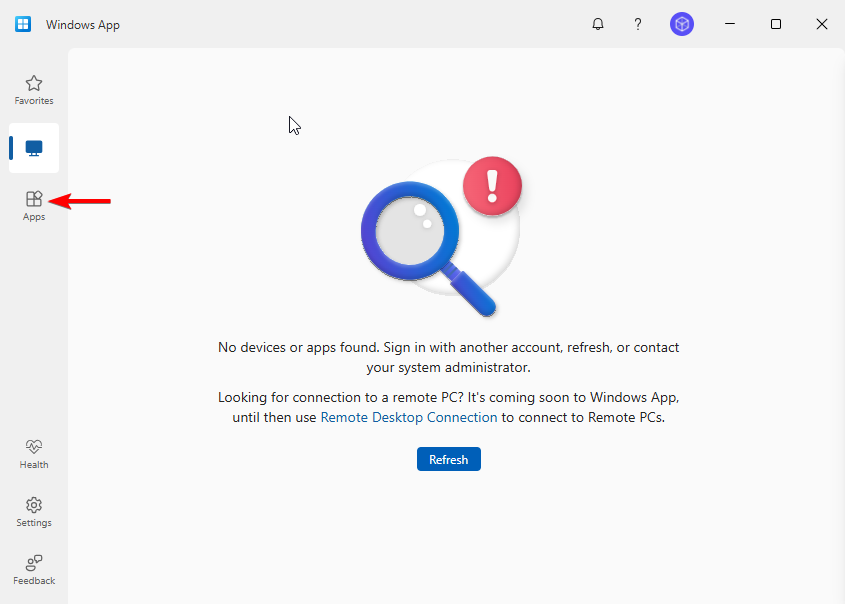
This will display the available applications you can access.
Step 5: Access Prodoc
On the Apps screen, locate the Prodoc application
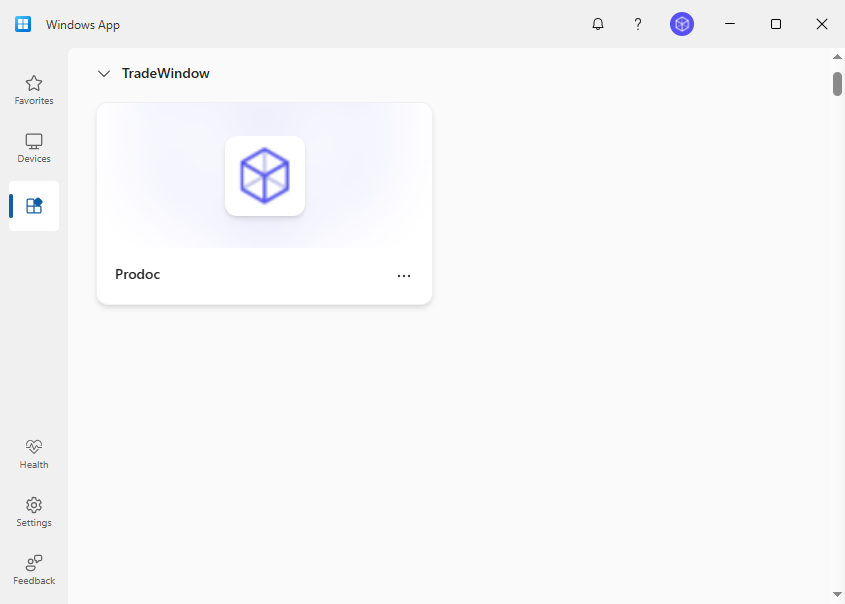
Click to launch the application and continue working as usual.
Tip: Once you’ve switched to the Windows App, you no longer need the legacy Remote Desktop application.
Was this article helpful?
That’s Great!
Thank you for your feedback
Sorry! We couldn't be helpful
Thank you for your feedback
Feedback sent
We appreciate your effort and will try to fix the article